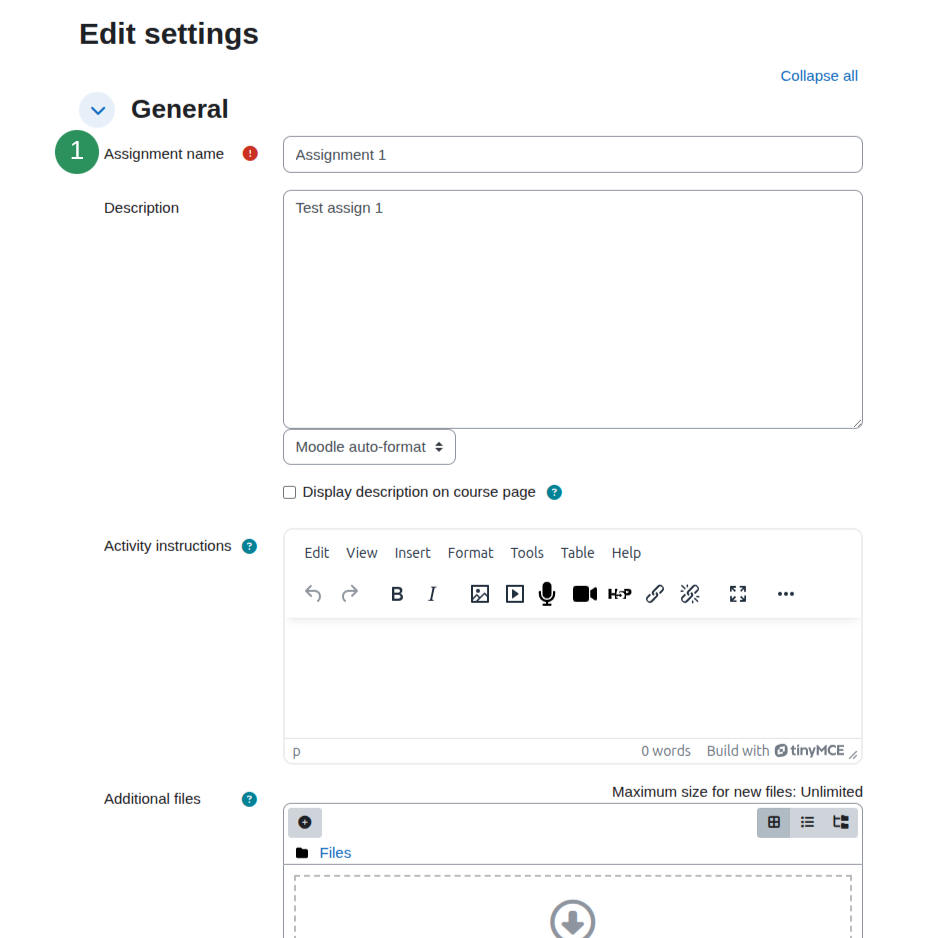
1.a Assignment name 1.b Assignment name with a link v1.3.0+
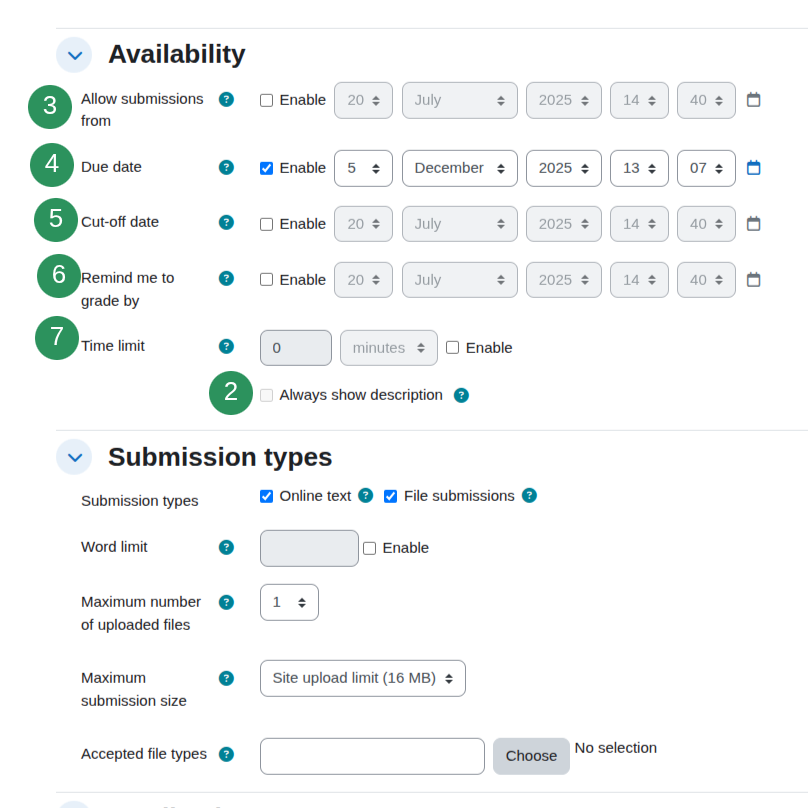
2. Always show description
3. Allow submissions from
4. Due date
5. Cut-off date
6. Remind me to grade by
7. Time limit
The time limit feature must be enabled by the admin from Site administration > Plugins > Assignment settings > Enable timed assignments.
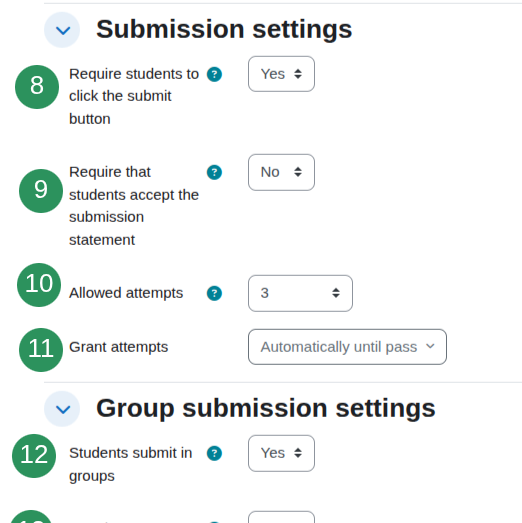
8. Require students to click the submit button
9. Require that students accept the submission statement
10. Allowed attempts
11. Grant attempts
Not visible when 'Allowed attempts' is set to 1.
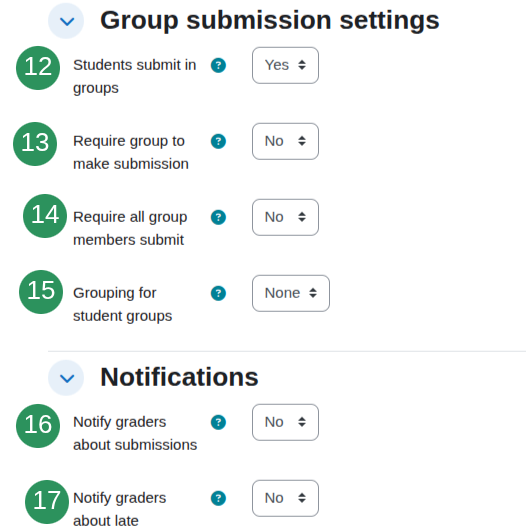
12. Students submit in groups
13. Require group to make submission
14. Require all group members submit
15. Grouping for student groups
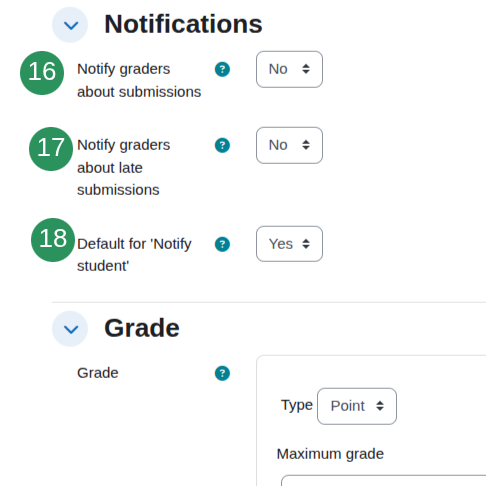
16. Notify graders about submissions
17. Notify graders about late submissions
18. Notify student
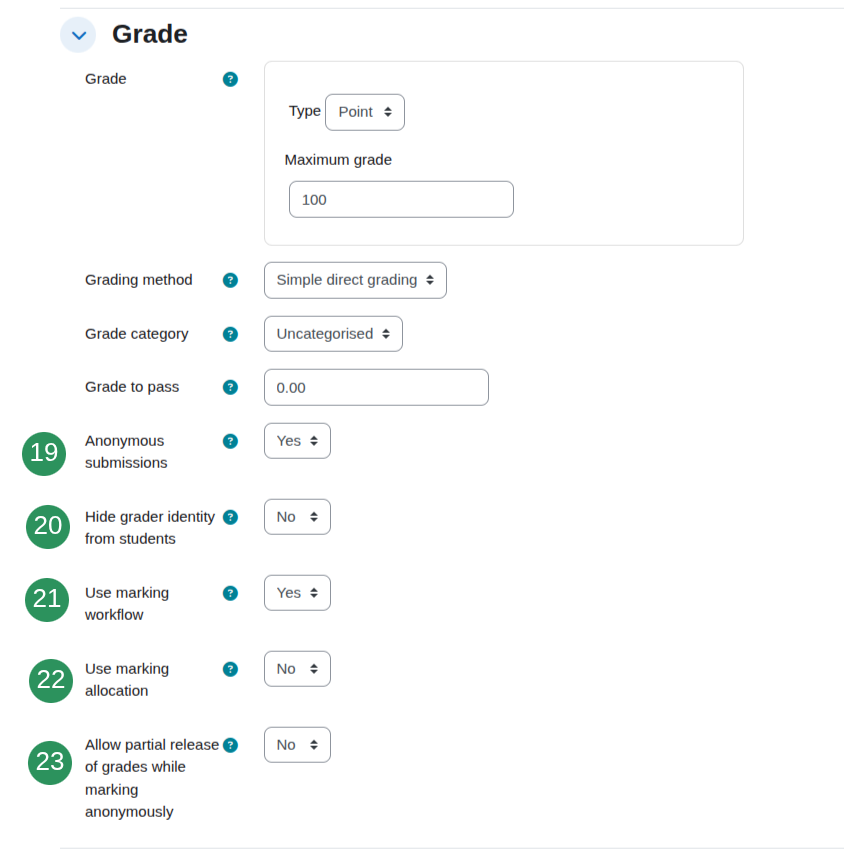
19. Anonymous submissions
20. Hide grader identity from students
21. Use marking workflow
22. Use marking allocation
23. Allow partial release of grades while marking anonymously
24. Reveal student identities
True: when the identities have been released in an anonymous (blind) assignment.
False: when the identities are still hidden.
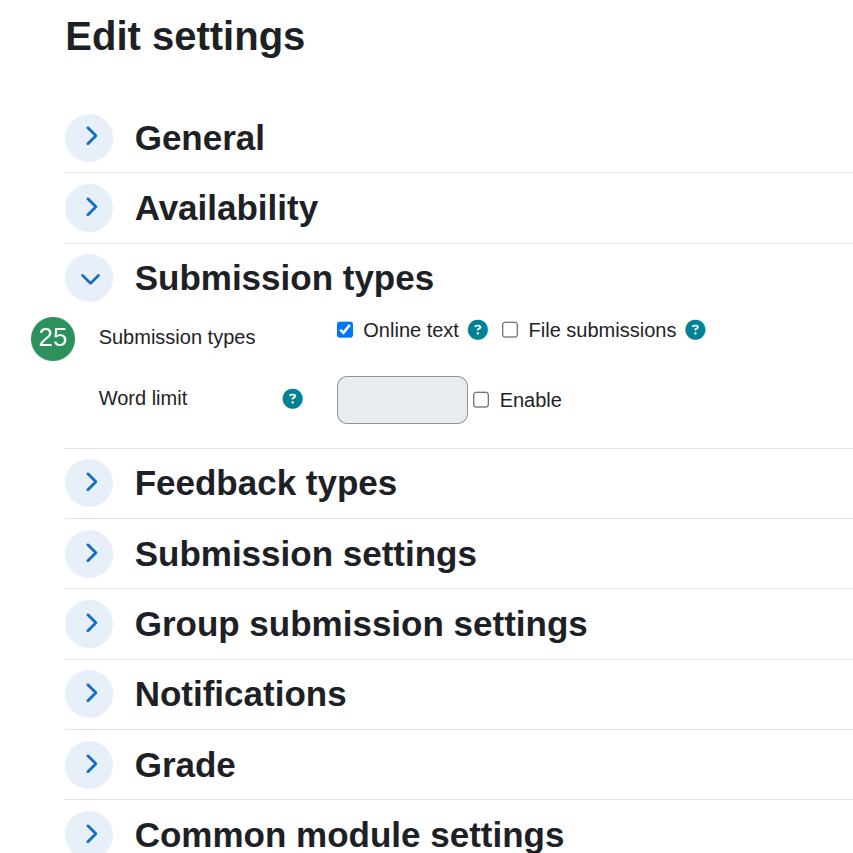
25. Assignment plugins
True: none of the possible submission types are enabled
False: at least one submission type (i.e. Online text or File submissions) is enabled.
It is called 'nosubmission' in the database, therefore it is a bit confusing.
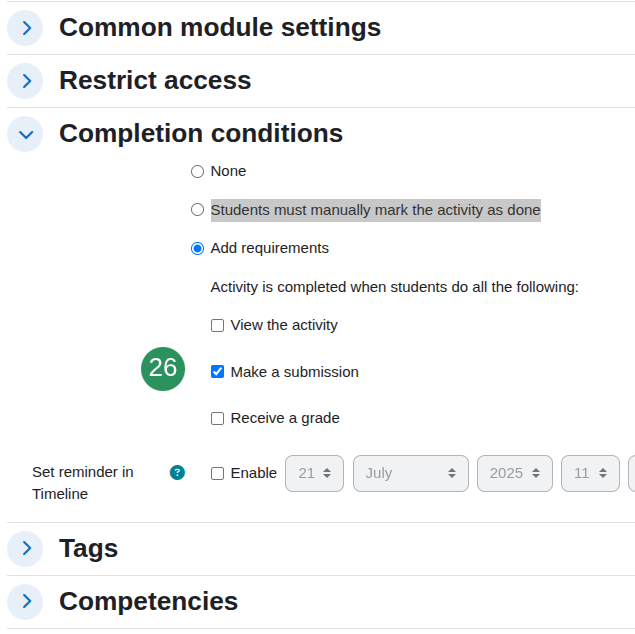
26. Make a submission
Activity specific completion conditions are always within the activity entity. Common conditions (i.e. 'Students must manually mark the activity as done' or 'View the activity') are under the Course Module Settings.
27. Last modified
Not available on the front end
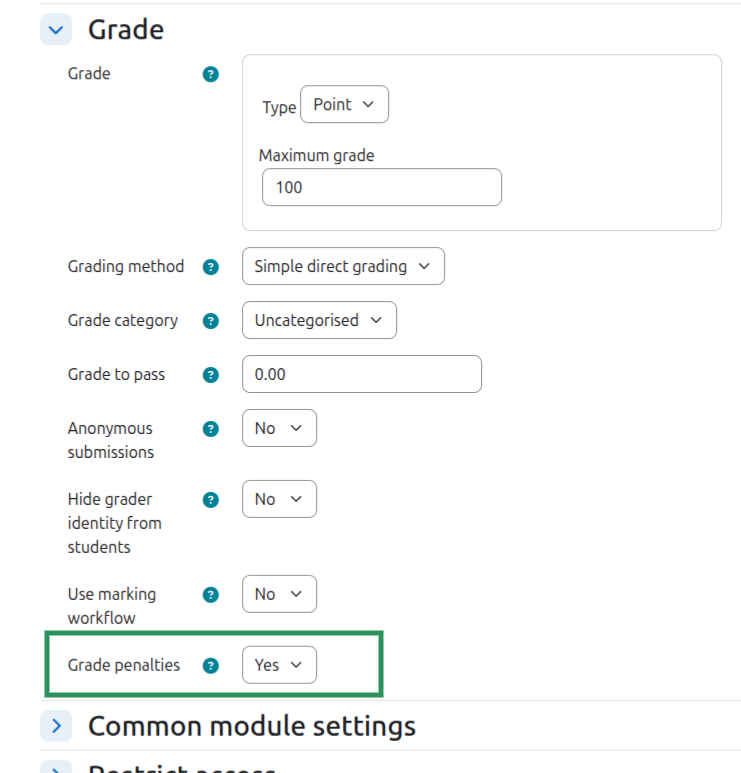
28. Grade Penalty Applicable 5.0+v1.3.0+
The penalty related columns are only available in the Report Builder if the feature is enabled for assignments in Site administration > Grades > Grade penalties > Manage supported activities > Enabled activities > Assignment The penalty is only applicable if the assignment has a due date. If the penalty is not applicable (the feature is enabled but the assignment has no due date), then the penalty column is blank. The filters only work on Yes/No values.
29. Grade Penalties 5.0+v1.3.0+
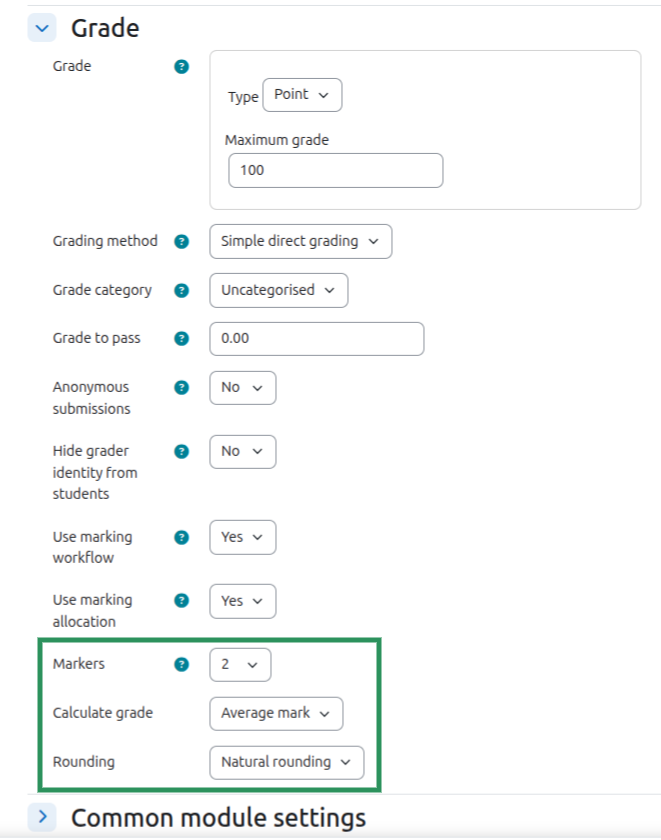
30. Multiple Markers: Markers 5.2+v1.3.0+
Markers and Calculate grade are only available in the Assignment settings page when both Use marking workflow and Use marking allocation are enabled. You can specify how many markers will grade each submission (1–10). Each allocated marker grades independently and their grade is called a mark (as distinct from the final grade recorded in the grade book). Rounding: Visible only when Calculate grade is set to Average.